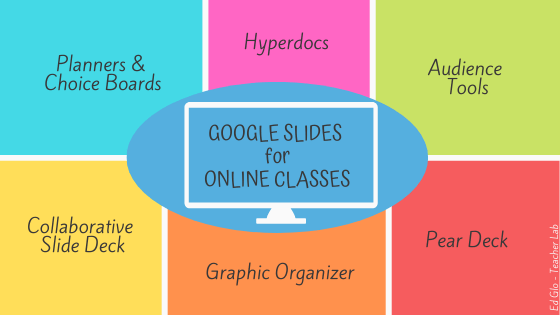
Google Slides have a special superpower – versatility. As one of the most versatile apps in the Google Suite for Education, they are used by teachers in several different ways. Since it integrates well with my Google Classroom, I prefer using Google Slides. If you are new to Google Slides, here are some ways a slide deck can be incorporated into your teaching.
1. Create Planners and Choice Boards for Self-Directed Learning
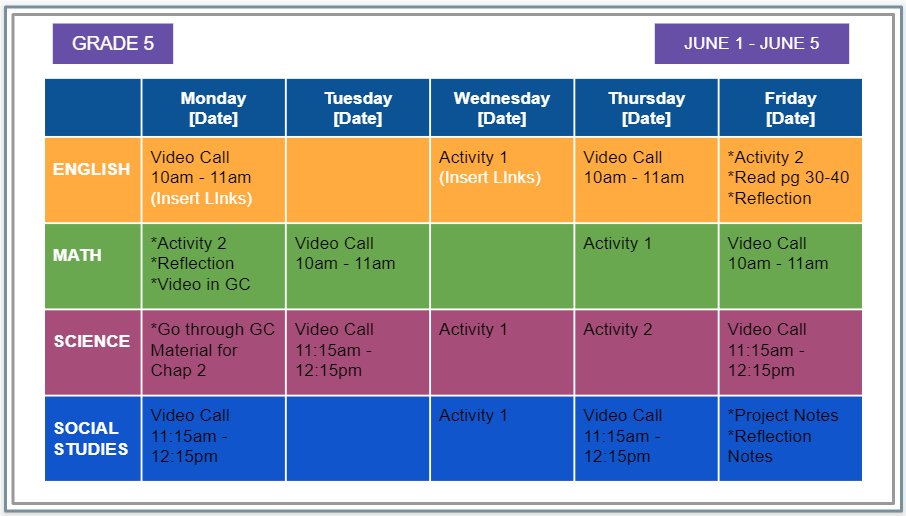
In the absence of whiteboards, softboards, school diaries and other resources that act as a central kiosk for learners to find information on homework, submission dates, reference pages, etc., Google Slides can be used to fill that void.
The weekly planner slide deck can be introduced in the synchronous class for learners to refer to when the teacher is not available during asynchronous learning. It’s as easy as adding a table and adding links that navigate to where the learners need to go. The links can be a video, a Google Forms quiz, or any other activity you’d like the learners to complete. At our school we use Seesaw for assigning and recording student work. The activity links and submission dates can be included in the slide deck. Parents find it easy to help track student work when everything is in one place.
The same method can be employed to create choice boards. Choice boards are incredibly useful in promoting student ownership, especially in online learning. They allow students to explore concepts and self-learn. They also allow students to dive deeper into a particular area of interest. Shana from Hello Teacher Lady shares a free downloadable template and a video on how to create choice boards.
For science teachers, here’s an example of an interactive slide deck for third graders created by The Tech Rabbi.
Also check out the free slide deck template by slidesmania.com. Club this idea with a flat teacher Bitmoji and create slide decks that are appropriate for asynchronous learning in kindergarten as well.
2. Collaborative Slide Deck
The same process used to create choice boards can be employed to create a collaborative slide deck where learners can add their work and see work completed by other learners.
If you are using this in Google Classroom as a collaborative activity, then you will set the slide deck to “students can edit file” when adding the slide deck.
3. Online Worksheets and Graphic Organizers
Many teachers have befriended Google Slides as it is easy to convert their graphic organizers (PDFs) to editable documents. If you are using Google Classroom, then this is something that will certainly benefit your learners. The key is to change the size of the page and set the PDF as a background image. The video by Tech About Math shows step-by-step instructions to convert your worksheets or graphic organizers into editable Google Slides.
4. Guided Learning with Hyperdocs
Hyperdocs, on the other hand, have revolutionized textbook-free teaching. Without debating the usefulness or longevity of textbooks, we can still agree that hyperdocs add depth to any learning environment. Google Slides are extremely useful to teachers who want to hand over the learning back to the students. Hyperdocs, created by educators Sarah Landis, Kelly Hilton, and Lisa Highfill, uses the 5E Model – Engage, Explore, Explain, Extend, Evaluate. Here’s a Padlet of several examples of Hyperdocs created by various educators. And this video from Techy Coach uses Google Slides and Google Drawings to create a hyperdoc.
5. Enhance Student Interaction with Pear Deck Extension
The Pear Deck extension for Google Slides allows for amazing interactions especially during your synchronous class. Teachers who’ve used it rate it highly. From an interactive slide for a quick formative where learners can click on thumbs up or thumbs down, to taking a quick poll, Pear Deck offers several options for interaction. Stacey Roshan, author of Tech with Heart, shows how to enhance interactions in your online class using various features included in the Pear Deck extension.
6. Instant Formatives with Audience Tools
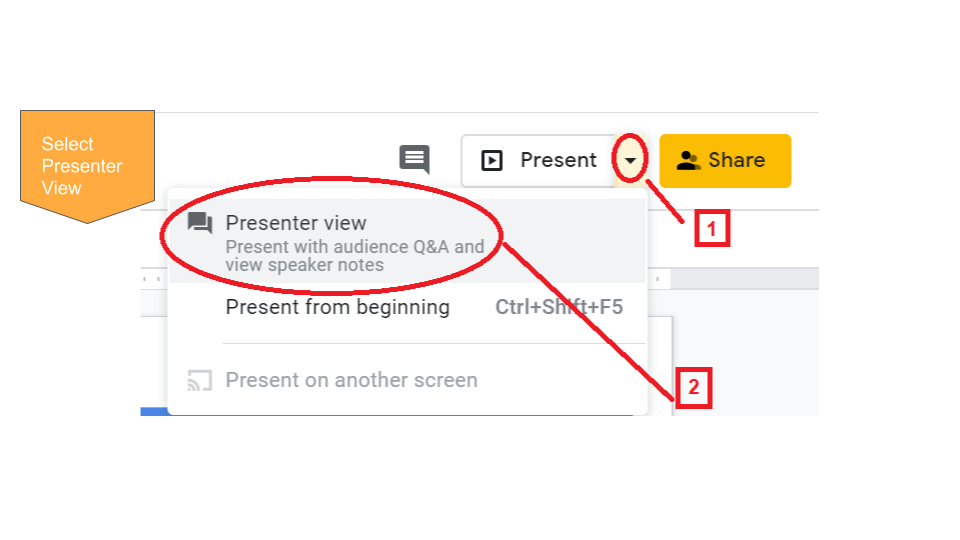
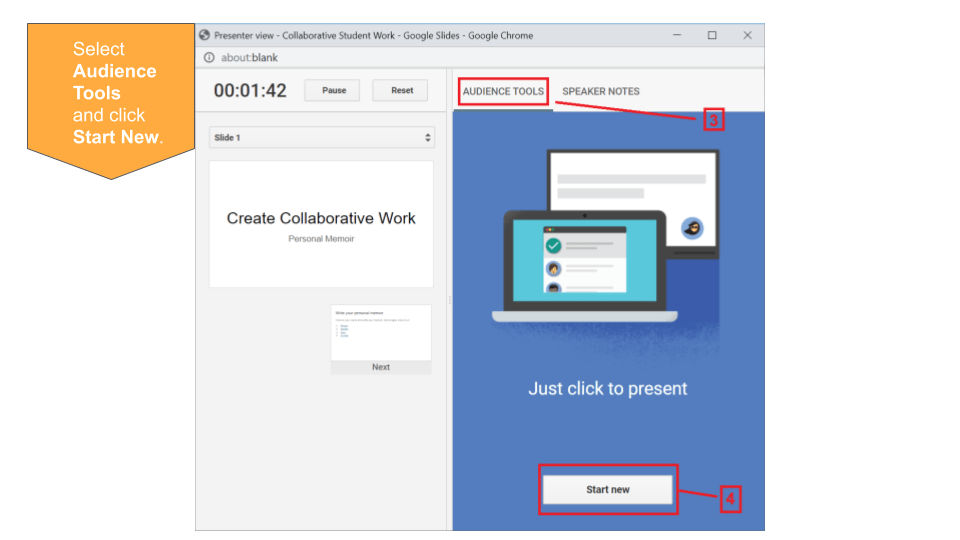
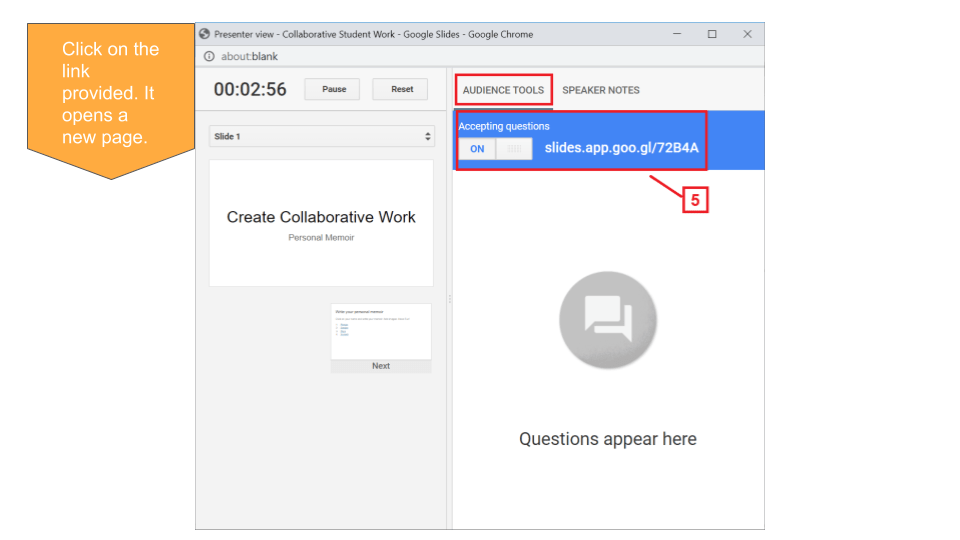
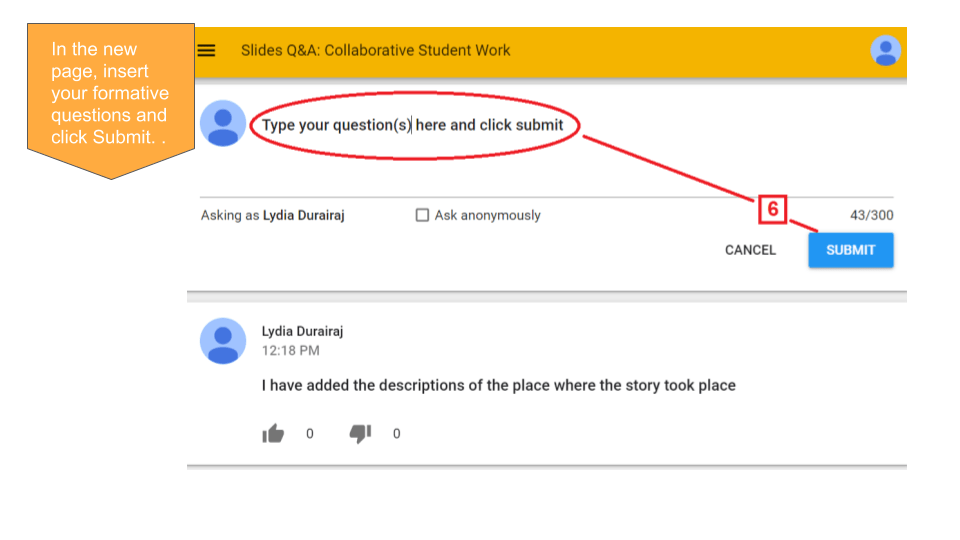
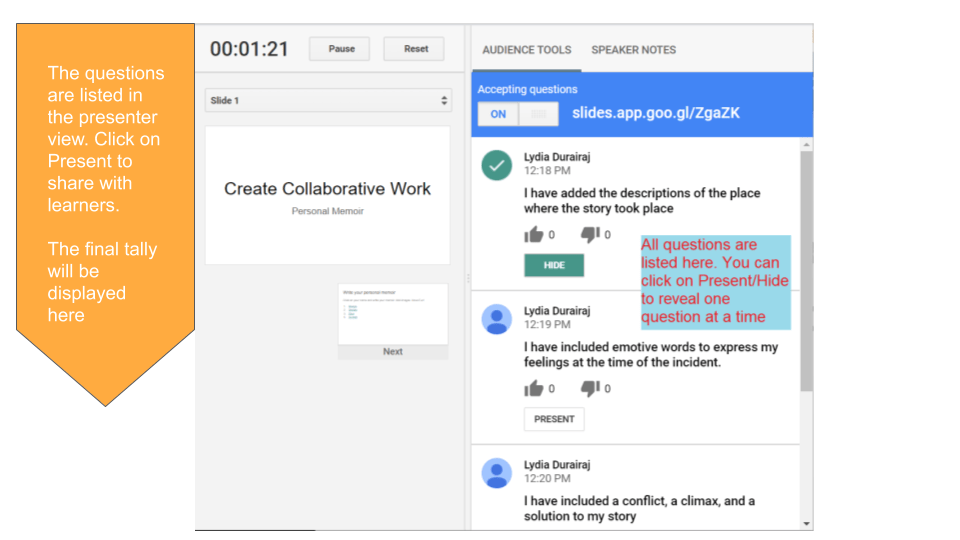
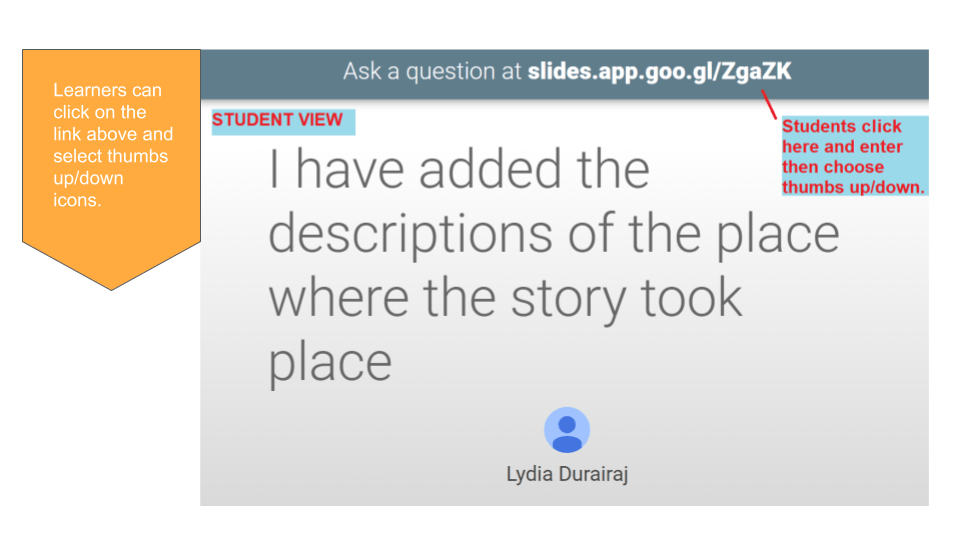
An underutilized feature of Google Slides is actually built right into the app and is tremendously useful tool for a quick formative or exit ticket. The teacher, who is also the presenter of the slide deck, can click on Presenter View and select Audience Tools. Using Audience Tools, ask your learners a formative question. Learners will be prompted to click on a link and select a thumbs up or thumbs down symbol in response to the question. This is a useful tool to pause and check for understanding.
Google Slides are easily accessible through G-Suite for Education, they are easy to use and they integrate well with Google Classroom. Do give it a try and let me know how your students respond to learning with Google Slides.
REFERENCES
Juliani, A.J. (n.d.). The Ultimate Guide to Choice Boards and Learning Menus. Retrieved from http://ajjuliani.com/the-ultimate-guide-to-choice-boards-and-learning-menus/
Hello, Teacher Lady (2020, March 21). How to Create Interactive Google Slides for Distance Learning + Grab FREE Choice Board Templates! [Video]. Youtube. https://www.youtube.com/watch?v=DhlpfkQvSss
The Tech Rabbi. (2017, Aug 2). How To Use Google Slides To Create Interactive Diagrams In Less Than 5 Minutes! [Video]. Youtube. https://www.youtube.com/watch?v=ELwwMdeH34o
Slidesmania (n.d.). Daily Activities or Choice Board Template for Google Slides. Retrieved from https://slidesmania.com/daily-activities-or-choice-board-template-for-google-slides/
Flanagan, E. (n.d.) Bitmoji Classroom Scenes & Virtual Classroom Backgrounds. Retrieved from https://www.erintegration.com/2020/05/16/bitmoji-classroom-scenes-virtual-classroom-backgrounds/
Alice Keeler (2016, May 10). Add Collaborative Google Slides to Google Classroom [Video]. Youtube. https://www.youtube.com/watch?v=XsUV8O-F31E
Tech About Math. (2020, March 24). How to Create a Digital Worksheet with Google Slides [Video]. Youtube. https://www.youtube.com/watch?v=LOe2B-jC6Mk
Hyperdocs.co (n.d.). It’s not about teaching technology, it’s about using technology to TEACH. Retrieved from https://hyperdocs.co/start
Moura, K. (n.d.) #Ditchbook with #HyperDocs #BetterTogether Sharing Extravaganza! Retrieved from https://padlet.com/mourakd/kg7szw5nerr9
Techy Coach (2018, March 3). Creating Interactive Leasons with Google Slides & Drawings [Video]. Youtube. https://www.youtube.com/watch?v=lSkliDQSYJk
Roshan, S. (Nov 7, 2018). Getting Started with Pear Deck to Make Your Google Slides Presentations Interactive [Video]. Youtube. https://www.youtube.com/watch?v=9PJgsa-fnmA
Durairaj, L. (2020). Audience Tools in Google Slides
Durairaj, L. (2020). Weekly Planner in Google Slides


One thought on “Google Slides for Online Classes”